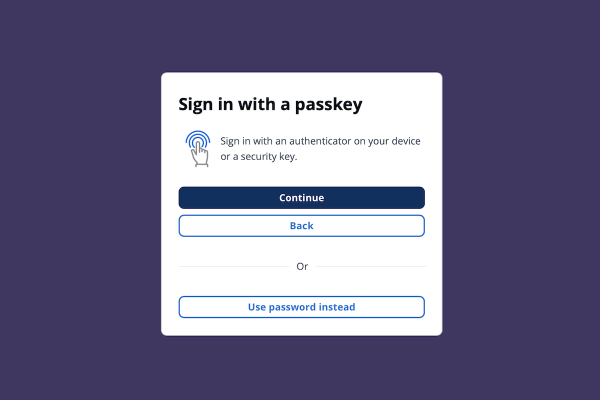
We recently tried to help users who tend to forget their passwords by adopting passkeys. Passkeys are a genuine improvement — but Cognito still requires a password as a companion factor. That password exists, and users reuse passwords across sites. A breach somewhere else becomes a risk here. Social login doesn’t eliminate passwords, but it eliminates the Cognito password: users authenticate with a Google account they already manage, and your app never holds a credential.
This post walks through a Cognito setup that delegates authentication to Google, restricts access to a fixed list of email addresses, and wires up an OAuth 2.0 PKCE flow — all through a single CloudFormation template and a small amount of vanilla JavaScript.
How Google Mitigates the Risk #
Social login doesn’t add MFA to your app. It shifts the authentication problem to a provider with far more resources to handle it. Google monitors accounts for suspicious sign-ins, cross-references credentials against known breach databases, and can step up verification when something looks off — all transparently, without any work on your side.
If a user’s Google account is protected by a fingerprint or face scan (which Google actively encourages), then signing in to your app inherits that protection. If their Google account uses a password and that password is reused elsewhere, Google’s breach detection is still a meaningful layer of defence — better than anything a small internal app is likely to implement independently.
The trade-off is dependency: if Google has an outage, your login page is down. You’re also trusting Google’s security model entirely. For most internal tools with a Google Workspace user base, that’s a reasonable trade. For an app where users may not have Google accounts, or where your security policy requires credentials you control end-to-end, social login is not the right fit.
Get Google OAuth Credentials #
Before any AWS work, you need a Google OAuth 2.0 client. Go to the Google Cloud Console, create a project if you don’t have one, and add a new OAuth 2.0 Client ID of type Web application.
Set the authorized redirect URI to your Cognito domain callback:
https://<stack-name>.auth.<region>.amazoncognito.com/oauth2/idpresponseYou won’t know the exact domain until after the first deployment, so there’s a two-stage process: deploy the stack first to claim the domain, then add the redirect URI in Google Console, then update the stack with your real client ID and secret.
Save the client ID and secret — you’ll pass them as CloudFormation parameters.
CloudFormation Infrastructure #
The template at cognito-social.yaml creates five resources: a User Pool, a Google identity provider, a Managed Login domain, an app client, and the branding configuration.
User Pool #
# cognito-social.yaml
UserPool:
  Type: AWS::Cognito::UserPool
  Properties:
    UserPoolTier: ESSENTIALS
    UsernameAttributes:
      - email
    AdminCreateUserConfig:
      AllowAdminCreateUserOnly: true
    LambdaConfig:
      PreTokenGenerationConfig:
        LambdaArn: !GetAtt AllowlistFunction.Arn
        LambdaVersion: V2_0
AllowAdminCreateUserOnly: true prevents self-registration for native (username/password) sign-ups.
AllowAdminCreateUserOnly does not block federated sign-ups. A user authenticating through Google will still get a Cognito account created on first login. The Pre-Token-Generation Lambda is the actual enforcement point.
Google Identity Provider #
GoogleIdP:
  Type: AWS::Cognito::UserPoolIdentityProvider
  Properties:
    UserPoolId: !Ref UserPool
    ProviderName: Google
    ProviderType: Google
    ProviderDetails:
      client_id: !Ref GoogleClientId
      client_secret: !Ref GoogleClientSecret
      authorize_scopes: "email openid profile"
    AttributeMapping:
      email: email
      name: name
The AttributeMapping tells Cognito which Google profile fields to copy into Cognito user attributes. At minimum you need email.
Managed Login Domain and App Client #
UserPoolDomain:
  Type: AWS::Cognito::UserPoolDomain
  Properties:
    UserPoolId: !Ref UserPool
    Domain: !Ref AWS::StackName
    ManagedLoginVersion: 2

UserPoolClient:
  Type: AWS::Cognito::UserPoolClient
  DependsOn: GoogleIdP
  Properties:
    UserPoolId: !Ref UserPool
    GenerateSecret: false
    AllowedOAuthFlowsUserPoolClient: true
    AllowedOAuthFlows:
      - code
    AllowedOAuthScopes:
      - openid
      - email
      - profile
    SupportedIdentityProviders:
      - Google
    CallbackURLs:
      - !Ref CallbackURL
    LogoutURLs:
      - !Ref LogoutURL
    AccessTokenValidity: 1
    IdTokenValidity: 1
    RefreshTokenValidity: 30
    TokenValidityUnits:
      AccessToken: hours
      IdToken: hours
      RefreshToken: days
SupportedIdentityProviders: [Google] means the app client only accepts Google authentication — there’s no username/password option exposed. DependsOn: GoogleIdP ensures the provider exists before the client is created.
ManagedLoginVersion: 2 on the domain resource enables the current Cognito hosted UI. With only one identity provider configured, users land directly on a screen with a single “Sign in with Google” button.
Restricting Access with a Lambda Allowlist #
Any Google account can authenticate through your IdP unless you enforce restrictions. Cognito Groups might seem like the answer, but they control authorization — what a signed-in user can do — not authentication. A user with no group membership can still sign in and receive tokens; your app would need to check group membership itself after the fact. The Pre-Token-Generation Lambda blocks at the source: if the email isn’t on the list, Cognito never issues a token.
AllowlistFunction:
  Type: AWS::Lambda::Function
  Properties:
    Runtime: python3.13
    Handler: index.handler
    Role: !GetAtt AllowlistFunctionRole.Arn
    Environment:
      Variables:
        ALLOWED_EMAILS: !Ref AllowedEmails
    Code:
      ZipFile: |
        import os

        def handler(event, context):
            allowed = {e.strip().lower() for e in os.environ["ALLOWED_EMAILS"].split(",") if e.strip()}
            email = (event.get("request", {}).get("userAttributes", {}).get("email") or "").lower()

            if email not in allowed:
                raise Exception(f"Access denied: {email} is not on the allowlist")

            return event
Pass the AllowedEmails parameter as a comma-separated list when deploying:
aws cloudformation deploy \
  --template-file cognito-social.yaml \
  --stack-name demo-social-login \
  --capabilities CAPABILITY_IAM \
  --parameter-overrides \
    GoogleClientId=your-client-id \
    GoogleClientSecret=your-client-secret \
    AllowedEmails="alice@example.com,bob@example.com"
When a non-allowlisted Google account authenticates, Cognito calls the Lambda before issuing tokens. The Lambda raises an exception, and Cognito returns an error to the OAuth flow. The user never gets a token.
Client-Side Authentication #
The browser-side code is the same OAuth 2.0 Authorization Code Flow with PKCE used in the passkey post — PKCE code challenge, state parameter for CSRF protection, token exchange in the callback, tokens stored in sessionStorage. None of that changed.
What did change is what happens between redirect and callback. Redirecting to /oauth2/authorize sends the user to Cognito Managed Login, which forwards them to Google. After Google authentication, Cognito calls the allowlist Lambda before issuing tokens, then redirects back with an authorization code. From the browser’s perspective, it’s the same flow — the social login step is invisible to the client.
Running It Locally #
After deploying the stack, generate your config.js from the CloudFormation outputs:
./update-config.sh demo-social-loginThen serve the files locally:
uv run python -m http.server 3000Open http://localhost:3000 and click Sign In. You’ll land on the Cognito Managed Login page showing a single Google button. After Google authentication, Cognito calls the allowlist Lambda. If your email is on the list, you’re redirected back with tokens. If not, you see an error.
For production, use HTTPS callback and logout URLs and update both the CloudFormation parameters and the Google Console redirect URI accordingly.
Fewer Passwords to Forget #
With this setup, your users have no Cognito password. They authenticate through Google, which handles its own security — phishing-resistant login, account recovery, and session management included. Your app gets a verified email claim in the ID token, the allowlist Lambda ensures only invited users can access it, and you’ve added no new credentials to manage.
The identities claim in the ID token identifies the authentication provider, so you can tell at a glance whether a user came from Google or another future provider. Adding Apple or a SAML provider later is a matter of adding another UserPoolIdentityProvider resource to the same template.
References #
- Amazon Cognito identity providers — how Cognito federates with external identity providers
- AWS::Cognito::UserPoolIdentityProvider — CloudFormation resource reference for IdP configuration
- Pre token generation Lambda trigger — how to intercept and block token issuance
- Cognito Managed Login overview — Managed Login v2 setup and customization
- RFC 7636 — PKCE for OAuth public clients — the standard the client-side code implements
- Google OAuth 2.0 for web server applications — setting up Google Cloud credentials